 AI-Tizi
Connect and choose a node
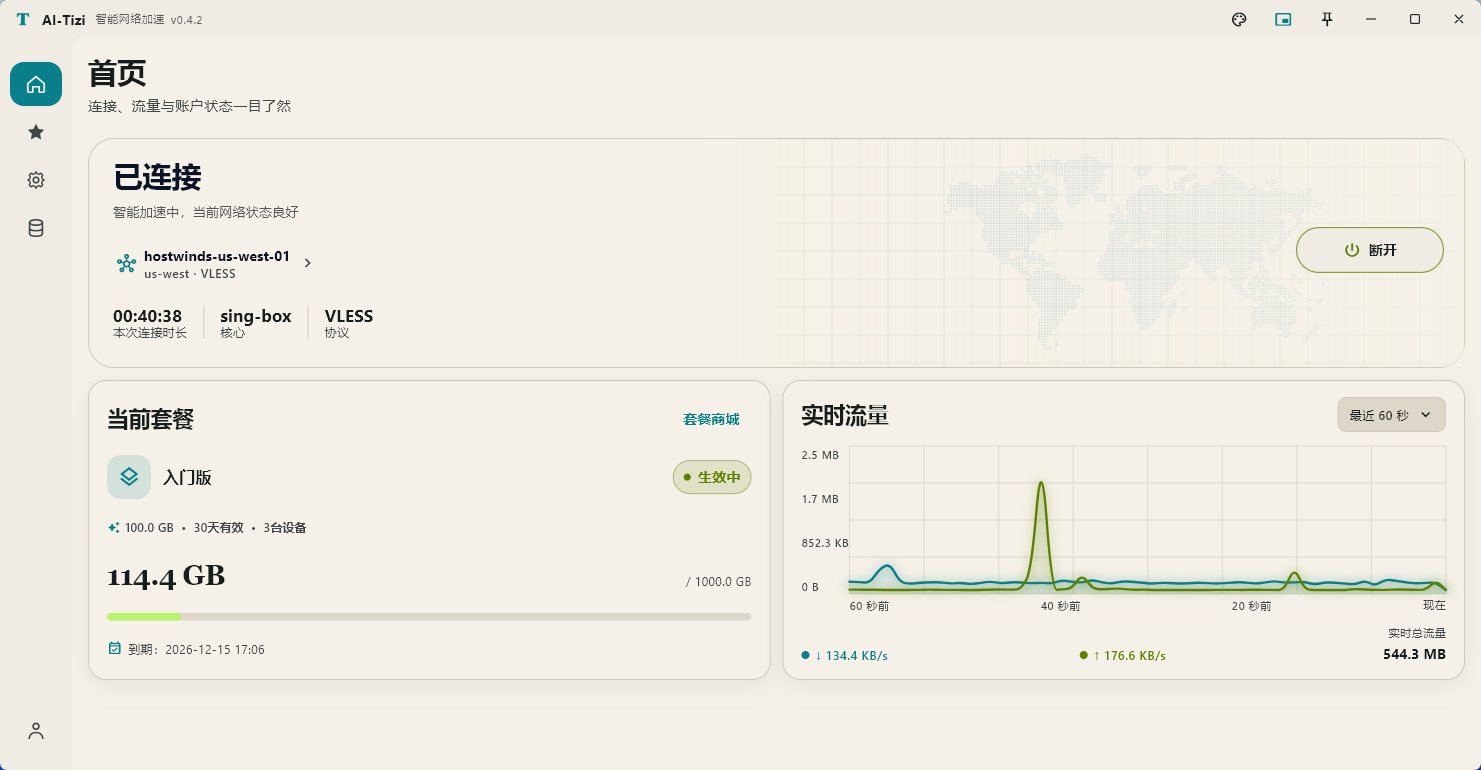
Let the app choose automatically, or filter by region and protocol and run speed tests. Shared and dedicated labels appear in the node list and connection status.
Read the node guide
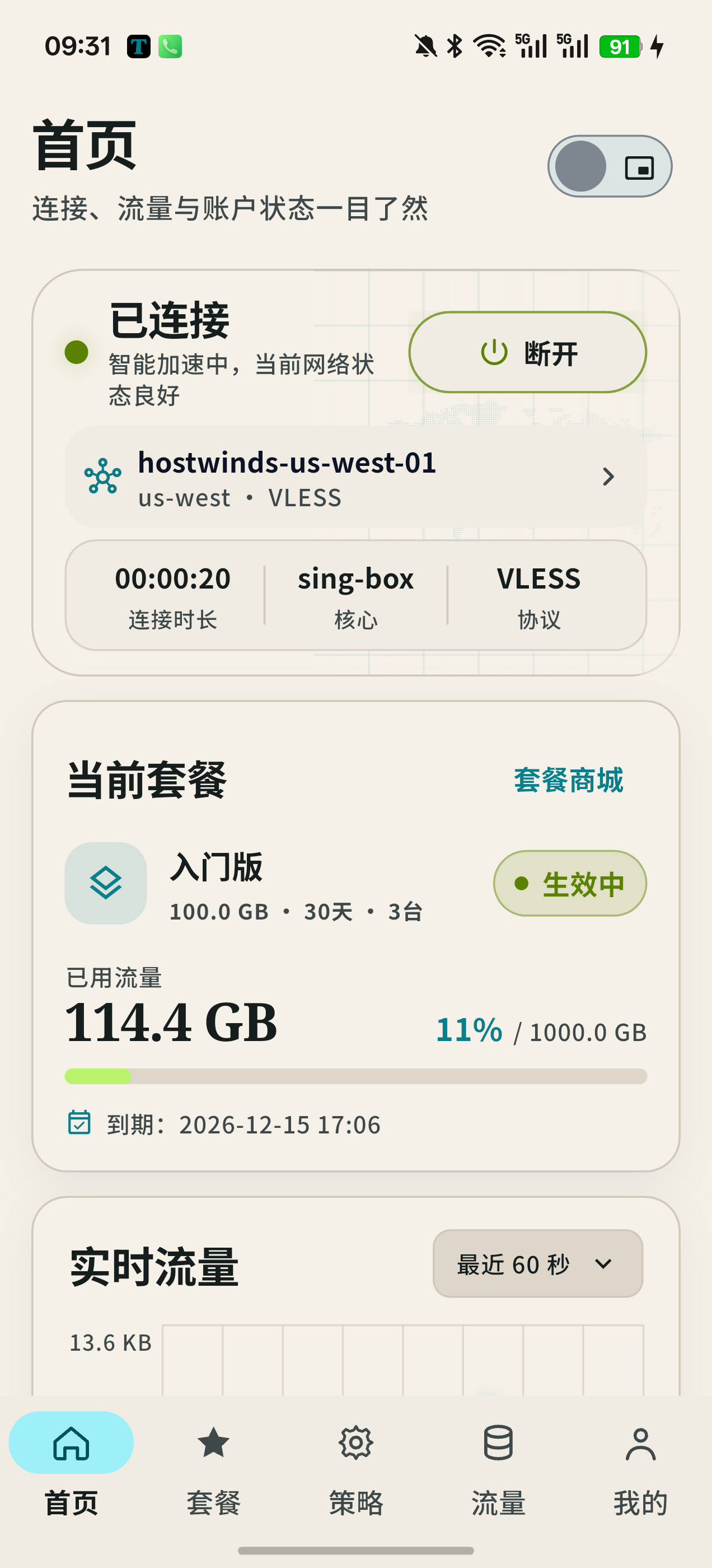
AI-Tizi is a network proxy for computers and phones. Connect to a node, route traffic by rule, and see live speeds and usage across devices.
Let the app choose automatically, or filter by region and protocol and run speed tests. Shared and dedicated labels appear in the node list and connection status.
Read the node guide
Match domain suffixes, keywords, or IP ranges and choose Direct, Proxy, or Block. Save named cloud profiles or import and export rules as JSON.
Explore routing rules
See live speeds and session traffic on the home screen. Check plan usage by device or node, and filter local access history to see how requests were routed.
Read the traffic guide
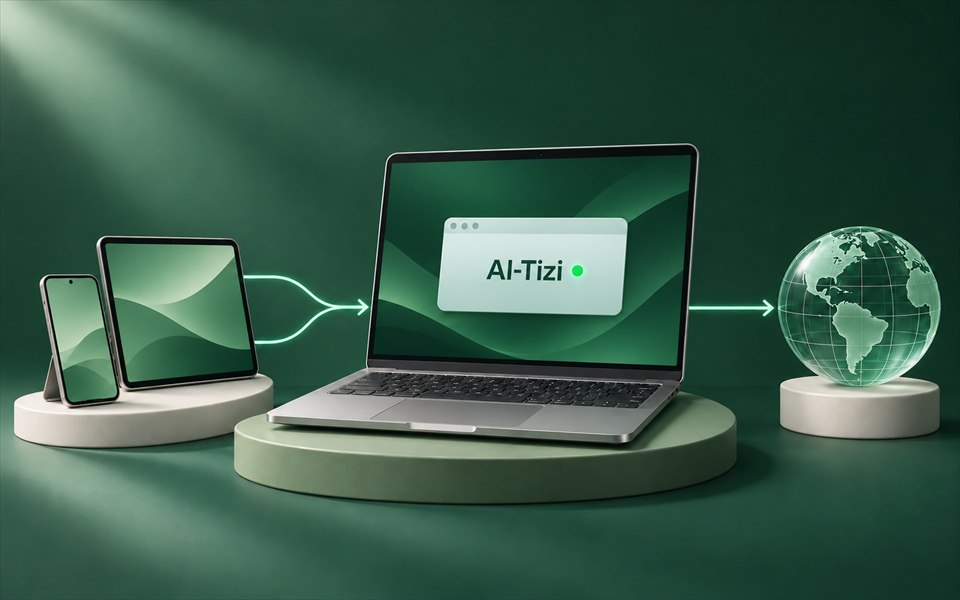
Turn on sharing in a connected Windows or Android app. Other devices on the same network can set the proxy address and port shown in AI-Tizi to get online through the host. Restrict access with credentials and an IPv4 allowlist.
Read the sharing guide
When a dedicated IP is offered in the in-app store, you can place a request. After payment, check review and assignment progress in Orders. Service starts once a node is assigned.
Read the order guide
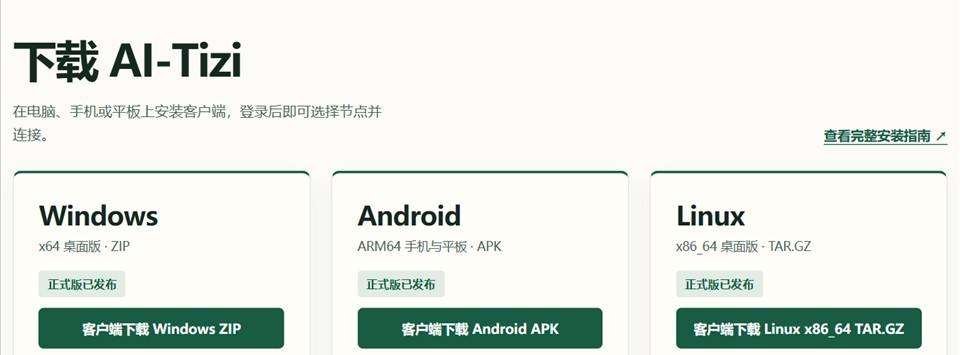
On platforms that support updates, you can check for a new version in the app. On Windows, use the title bar. See Downloads for public releases.
Check for app updates